Thunkable Tuto (2/2): Make your mobile app smart with the Google Gemini API
In the first part of this tutorial, we connected our mobile prototype to a Firebase database. This is a great practice, especially relevant if you plan to transition to coding with frameworks like React Native later on. However, this approach keeps us dependent on a pre-filled database.
Today, we are shifting into high gear. After 20 years in the IT industry, I am still fascinated by how easily we can now integrate artificial intelligence into an app with just a few clicks. We are going to replace our static database with the Google Gemini API to generate 100% custom quotes on the fly!
Foreword: This article, enhanced with improvements generated by AI (Google Gemini), is made available under the CC BY-ND 4.0


Step 1: Get the brain’s keys (Google AI Studio)
To talk to Gemini from our app, we need a pass: an API key.
- Go to Google AI Studio.
- Sign in with your Google account.
- In the left menu, click on Get API key and then on the Create API key button.
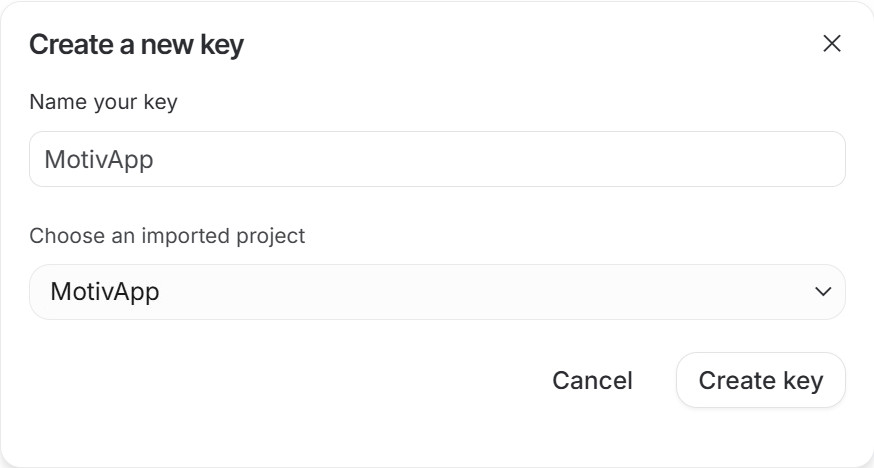
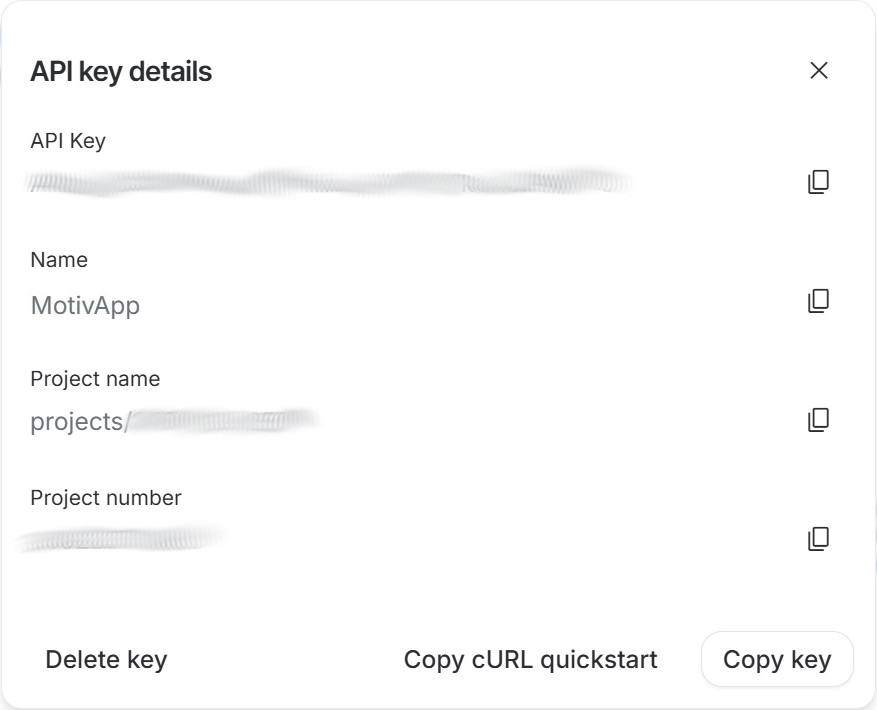
- Once the API key is created, click on it to display it.
- Copy this long string of characters and keep it safe (never share it publicly).
Step 2: Adapt MotivApp’s Design
Let’s pick up our Thunkable project where we left off. We are going to add some interactivity.
- On Screen1 (Home): Add a Text Input component right above the “Inspire me!” button. Change its Hint property to display: “Enter a theme (e.g., Sports, Coding…)”. Rename this component
Input_Theme.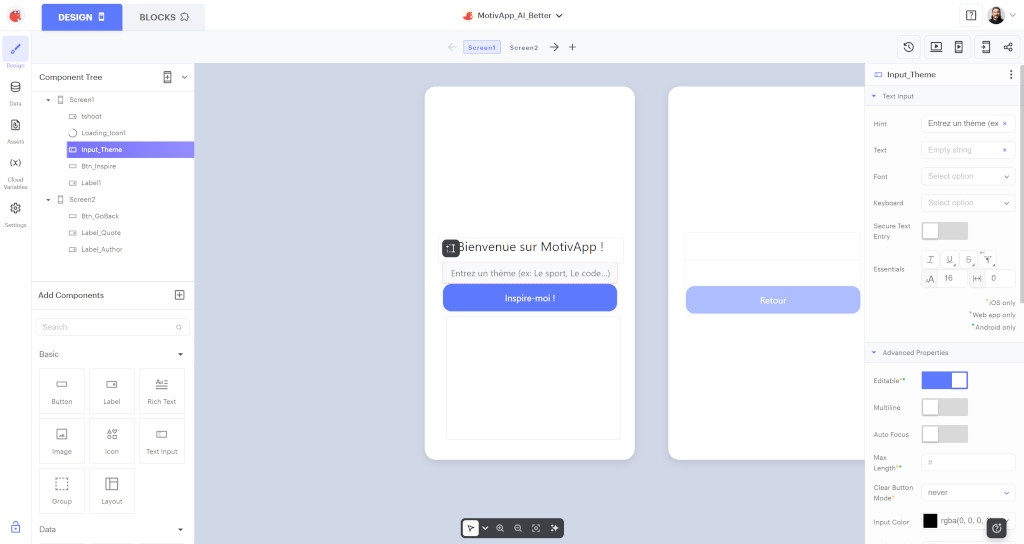
Step 3: Prompt Engineering with RISEN
This is the core of the reactor. To prevent the AI from rambling, we will structure our request (prompt) with the professional RISEN framework. Here is how we will constrain the gemini-2.5-flash model:
- R (Role): Act as an expert motivational life coach.
- I (Instruction): Write an original motivational quote based on the following theme: [Theme typed by the user].
- S (Steps): 1. Analyze the theme. 2. Find an inspiring angle. 3. Formulate the quote. 4. Attribute it to a fictional or real author.
- E (End Goal): The reader must feel an immediate urge to take action.
- N (Narrowing): The response MUST follow this strict format: ‘Quote - Author’. Do not exceed 20 words. Do not include any greetings.
Here is exactly the final text our app will assemble, replacing the end app variable with the theme chosen by the user:
Act as an expert motivational life coach.
Write an original motivational quote based on the following theme: [USER'S THEME].
1. Analyze the theme. 2. Find an inspiring angle. 3. Formulate the quote. 4. Attribute it to a fictional or real author.
The reader must feel an immediate urge to take action.
The response MUST follow this strict format: 'Quote - Author'. Do not exceed 20 words. Do not include any greetings.
Step 4: Logic and Blocks
On Screen1
Blocks overview
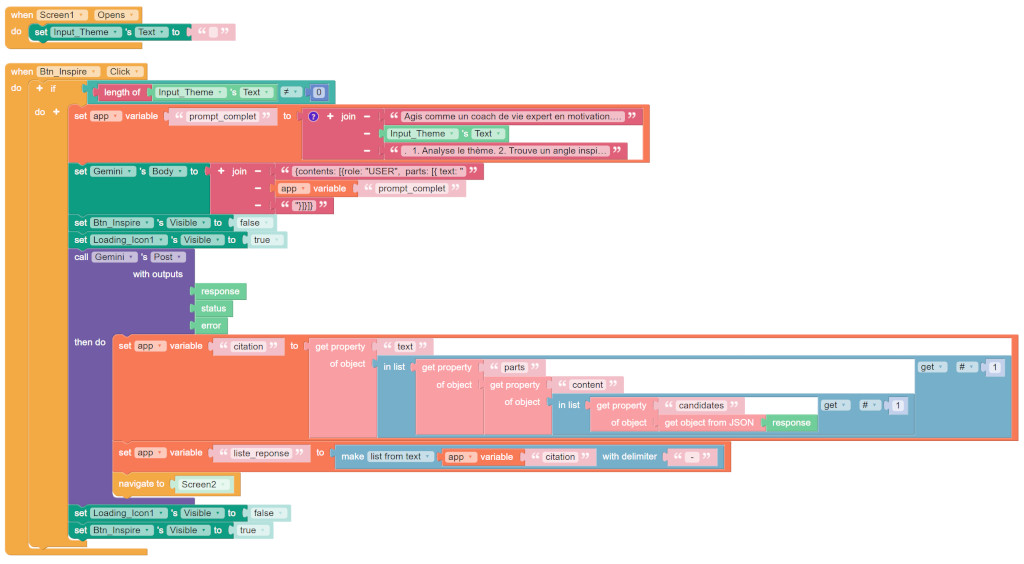
Blocks sequence
Initialisation
- When
Screen1opens, empty theInput_Theme. - When clicking on
Btn_Inspire, we must check that theTextin theInput_Themecomponent is not empty before executing the next steps.
Building the API Request:
-
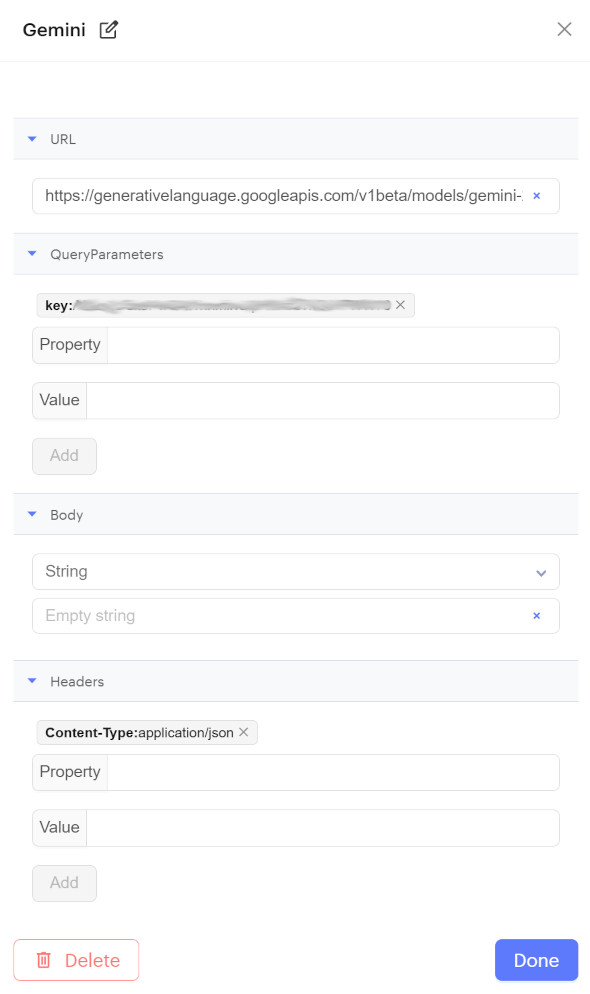
Create a Web API component : on the left list, uncollapse “Advanced”, then click on [+] at the right side of “Web APIs”. This will replace Firebase to communicate with Google’s servers.
- Rename it to
Gemini. - Configure the API URL: set the field “URL” to
https://generativelanguage.googleapis.com/v1beta/models/gemini-2.5-flash:generateContent. - Configure your API key:
- Set the field “Property” to
key - Paste your API key in the field “Value”.
- Click on [Add].
- Set the field “Property” to
- Setup the header:
- Set the field “Property” to
Content-Type - Set the field “Value” to
application/json. - Click on [Add].
- Set the field “Property” to
- Click on [Done].
- Rename it to
The Gemini API is very strict about the data format it receives. It expects a JSON object containing a contents list, which itself contains a parts list, which finally contains the text attribute with our prompt. In Thunkable, the easiest way to build this request body is to use a text block.
- First, create an
appvariable namedfull_promptand use ajoinblock to stick the large RISEN text block (seen in step 3) with theTextin theInput_Themecomponent. - Grab another advanced
joinblock (which allows pasting several pieces of text together). - In the first box, paste exactly this beginning of JSON code:
{"contents": [{"parts": [{"text": " - In the second box, drag your
full_promptappvariable. - In the third box, close the JSON code with:
"}]}]} - Assign the whole thing to the
set Web_API's Body toblock.

Extracting the JSON response:
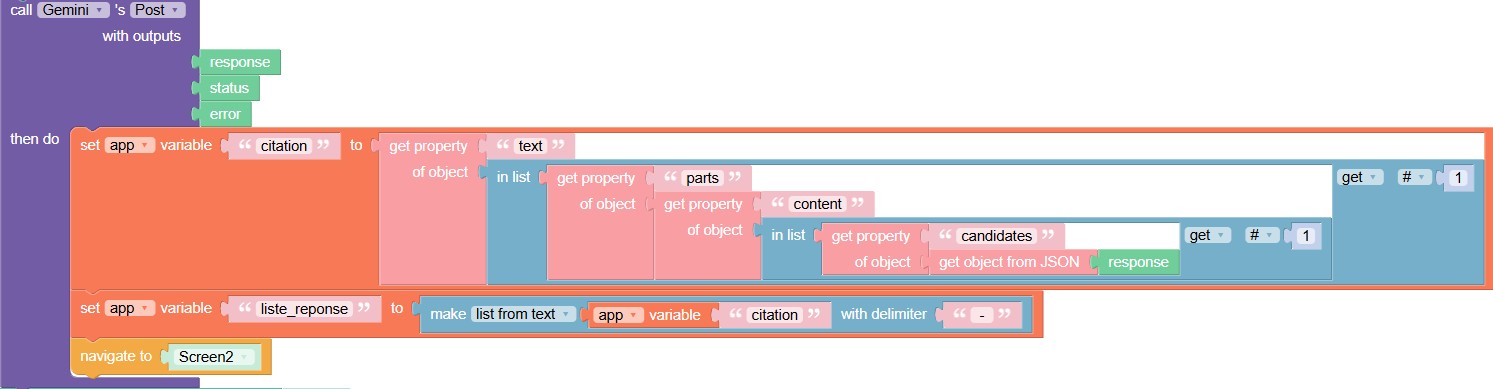
- Trigger the call with the
call Gemini's Postblock. - The API replies with a large block of complex textual data (
response). - In the
then dosection, we will isolate the text we want by nesting several blocks, much like Russian dolls. We will assign this entire path to a newcitationappvariable. - To fully understand this large red and blue block, read it from right to left (from the inside out):
- We turn the raw text into a manageable object:
get object from JSON [response]. - We extract the
candidatesproperty. - This is a list, so we grab the first item:
in list [...] get # 1. - We extract the
contentproperty. - We extract the
partsproperty. - This is also a list, so we grab the first item:
in list [...] get # 1. - We finally extract the
textproperty.
- We turn the raw text into a manageable object:
- Separating the quote from the author:
- Create an
app liste_reponseappvariable. - Assign to it the
make list from textblock (in Lists), using ourcitationappvariable, and type" - "in thedelimiterbox. - Now that our data is clean and split, finish by dragging the
Maps to Screen2block.
- Create an
On Screen2
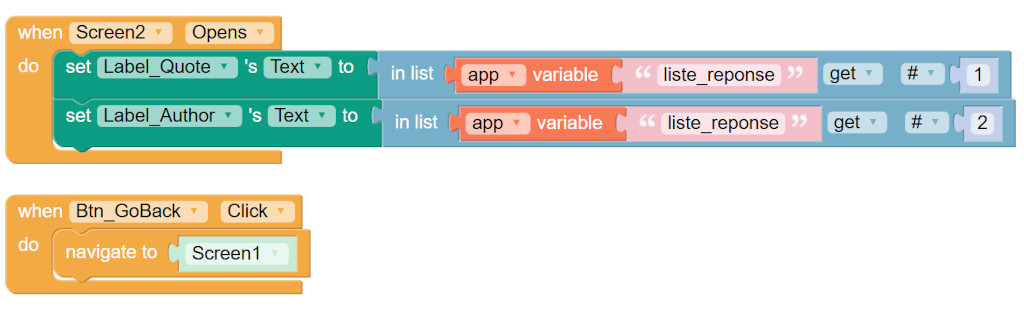
- Update
Label_Quoteby getting the first item of this list (in list get # 1block). - Update
Label_Authorby getting the second item (in list get # 2block).
Step 5: Try it out!
The moment of truth has arrived.
- Launch the app via Thunkable Live on your phone (or via the web preview).
- On the first screen, type a theme you care about in the text input (for example: “Stress management”, “Pushing your limits”, or “Learning to play guitar”).
- Tap Inspire me!.
- After a brief second (the time it takes for Google’s model to generate its response), you will automatically switch to the second screen.
- And there you have it! A unique, perfectly formatted quote tailored to your theme appears right before your eyes. You can just click “Go Back” to try with a new idea!
Conclusion
Congratulations! You have just created a mobile app capable of generating endless content using artificial intelligence. The limits of no-code are being pushed every day, and now is the perfect time to experiment.
Feel free to modify the RISEN prompt to create a recipe generator, a poem creator, or even an interactive quiz. The floor is yours!